Batch 9-Slice to Unity Prefab
Convert a folder of sprites into ready-to-use Unity prefabs in under a minute. Everything runs in your browser — no uploads, no sign-in.
- 01
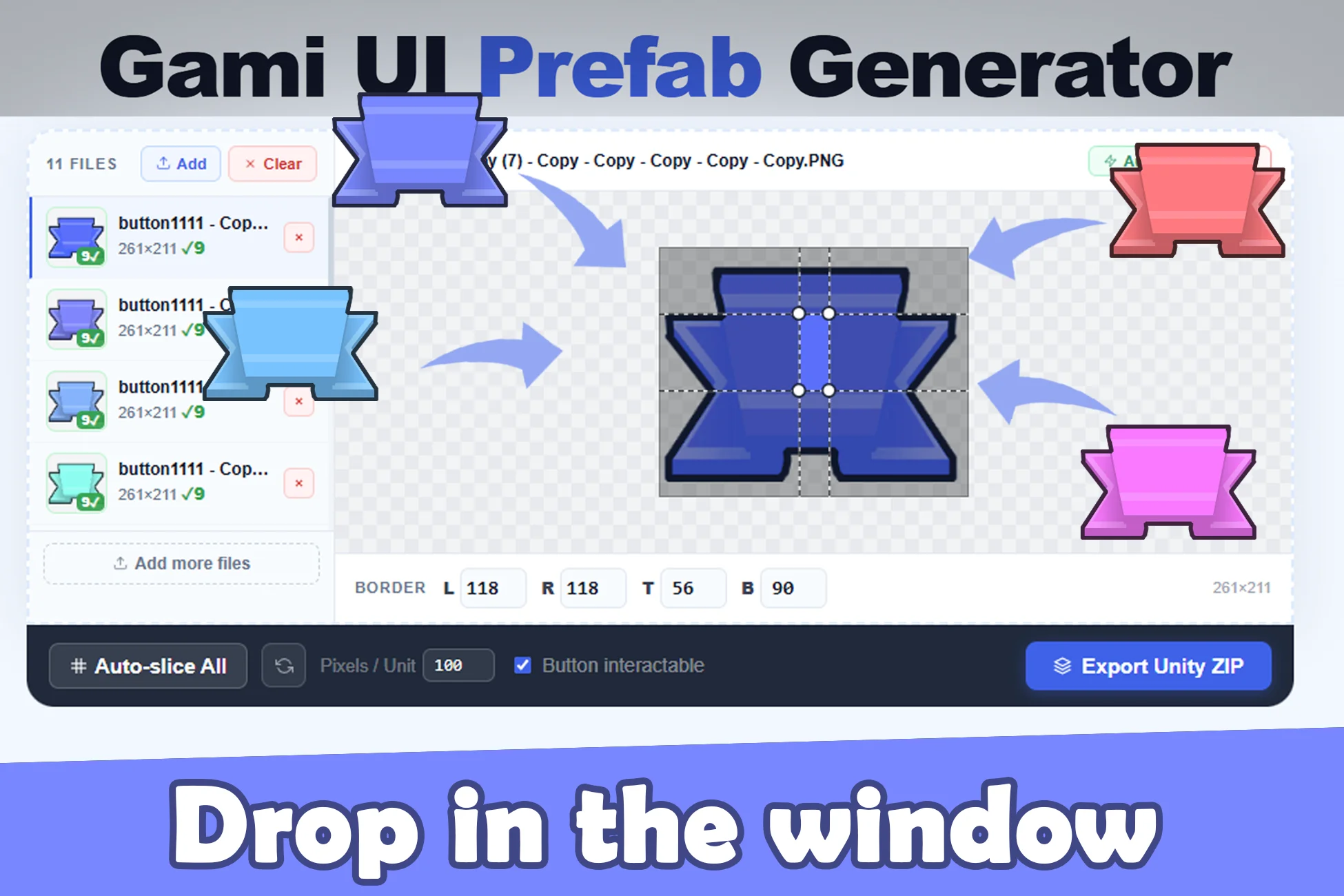
Drop as many as you in the window
Open ArtEditor.art and drag your sprite files (PNG, JPEG, or WebP) into the Batch 9-Slice to Prefab Generator panel. Up to 30 files at once. Files load into browser memory only — nothing is uploaded.
- 02
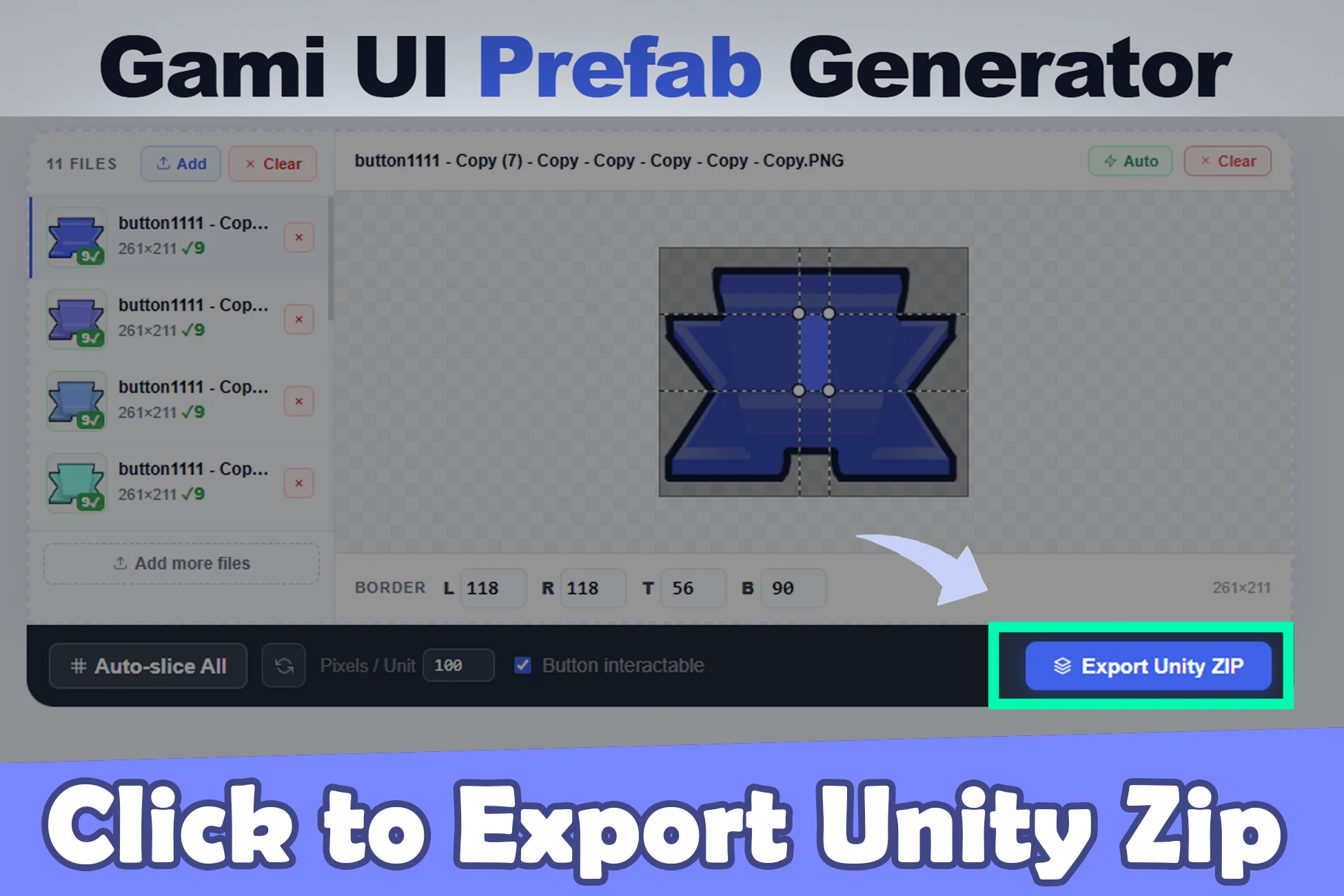
Click to Export Unity Zip
Click Export ZIP. Each sprite is analyzed, 9-slice borders are auto-detected, and the tool packages the sliced sprites together with a JSON layout descriptor compatible with the Gami Prefab Importer. The ZIP is built in your browser and downloads directly — no server round-trip.
- 03
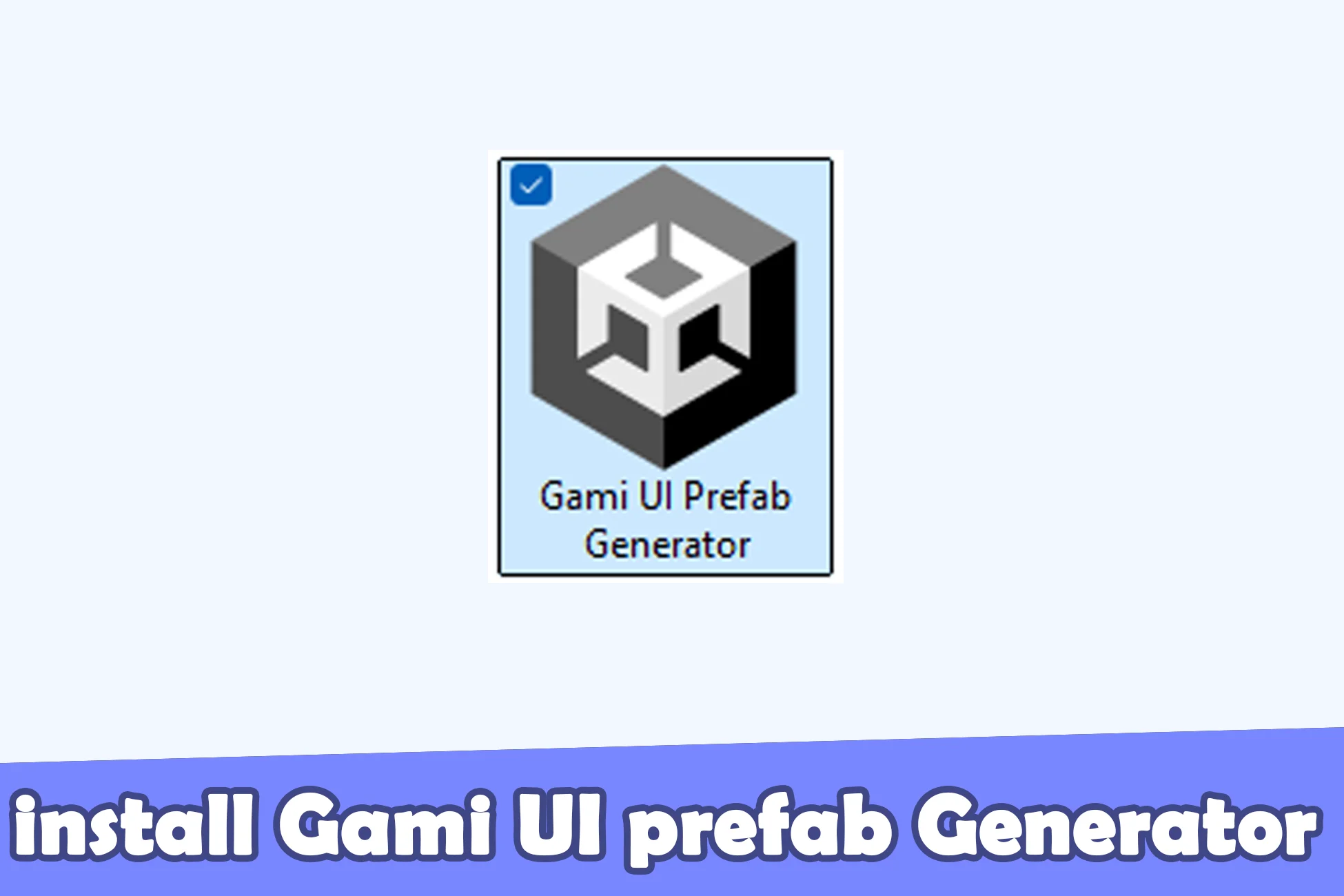
Install Gami UI Prefab Generator
In Unity, install the Gami UI Prefab Generator package (free on the Asset Store). It adds a dedicated importer window under Window → Gami Prefab Importer, ready to receive the ZIP you just exported.
- 04
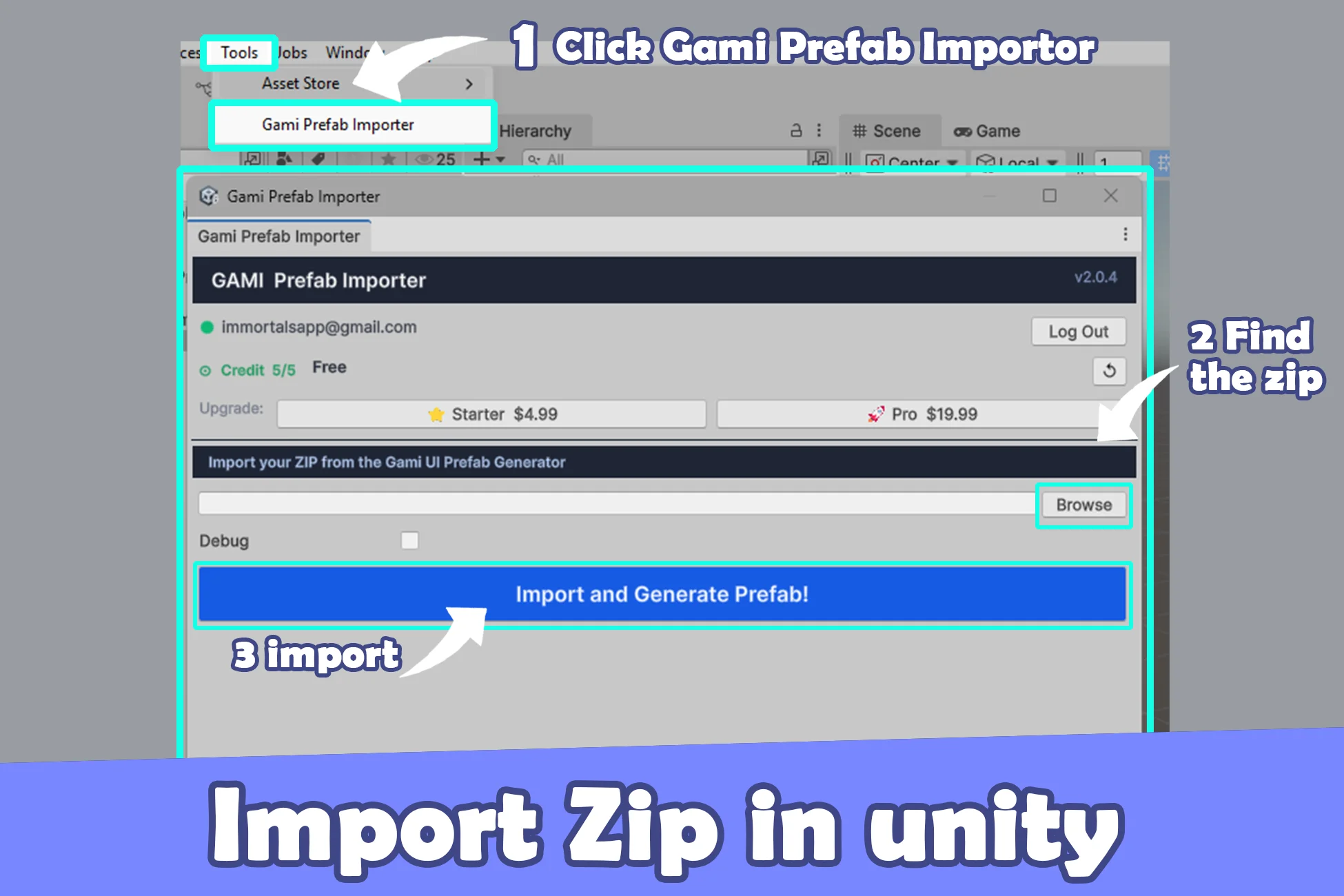
Import Zip in Unity
Open Window → Gami Prefab Importer in Unity, then drag the exported ZIP into the import zone. Each sprite becomes a Unity prefab with the 9-slice settings preserved and ready to drop into any scene.